



05 Jan Foliage Renderer Object Module
Extend your Foliage Renderer workflow with the ability to submit individual GameObjects straight from your scene to FoliageRenderer’s IndirectRenderer.
Foliage Renderer Object Module (FROM) extends and REQUIRES Foliage Renderer! Make sure your project is already utilizing Foliage Renderer (FR) and you have it installed!
For the latest version of FROM we recommend you:
- Join the DWD Discord
- Follow the directions in the documentation channel to gain Github Access
- Now you can stay up to date with the latest version of FROM!
Working with FROM
FROM is very easy to work with, and will merge with your existing Foliage Renderer workflow! There are two components for you to use to integrate GameObject Renderers with FR…
- Indirect GameObject Provider: This component will add a single Renderer or LOD Group into FR. It is not the most efficient, but if you have a few bespoke objects you need to integrate it makes that easy.
- Indirect Child Instance Provider: This component will grab all of its Child Objects with Renderers or LOD Groups and submit them as a batch. This is more performant if you have a group of objects, like a line of Trees along an avenue, that you need to submit.
These components are designed to submit a SINGLE Prototype as a batch. Remember, Unity’s Terrain Prototypes are effectively a Prefab reference, so our Providers follow that pattern. If you need to submit some Rocks and some Trees, each of those should have their own Provider.
Indirect GameObject Provider
- Install FROM via the PackageManager
- Find a GameObject in your Scene you want to Render via the FR IndirectRenderer, or drag the included ‘IndirectCapsuleExample’ into your Scene.
- If you’re not using the example Prefab… Click ‘Add Component’ in the Inspector Panel
- Navigate to ‘Foliage Renderer > Providers > Indirect GameObject Provider
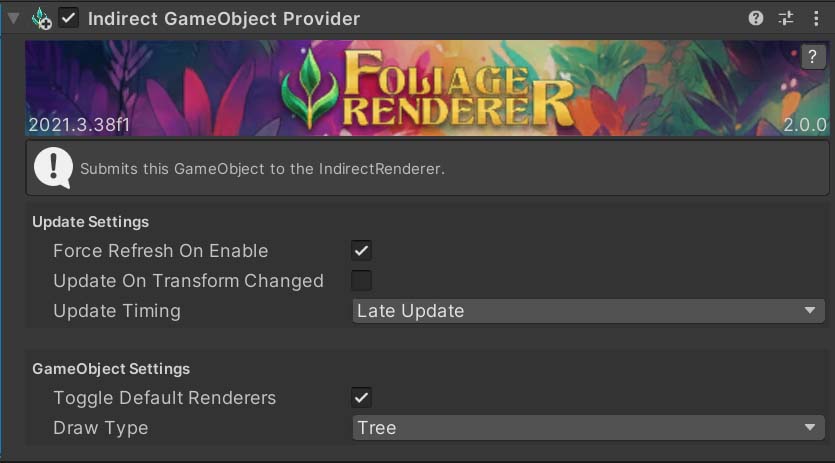
Great job! Now your GameObject will render via the IndirectRenderer! From here you can configure a few settings to adjust the behaviour of the Indirect GameObject Provider.
Like all Provider Components in the FR ecosystem, there are several Update Settings:
- Update Settings
- Force Refresh On Enable: If enabled, when this Component or GameObject’s OnEnable function would be called, this Provider will Refresh its Draw data and Register with the IndirectRenderer.
- Update On Transform Changed: If enabled, when this Component is moved it will Refresh its Draw data.
- Update Timing: At what point in the Update loop should this Provider actually resolve any queued Refreshing.
Additionally, Indirect GameObject Providers have a few extra GameObject Settings:
- GameObject Settings
- Toggle Default Renderers: When enabled, this Provider will disable any Child Renderer components when it is enabled. And it will re-enabled those Child Renderer components when it is disabled.
- Draw Type: This determines the “kind” of Object you wish to render and what Overrides it will use in the FR Indirect Draw Manager. Options are; Tree, Detail and Object.
Indirect Child Instance Provider
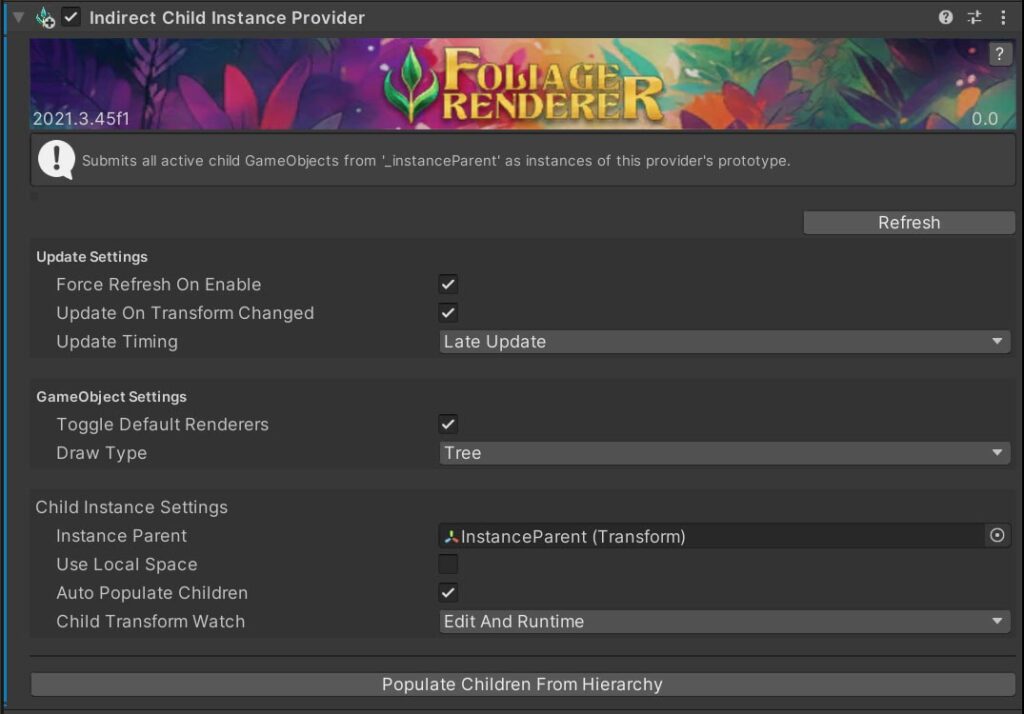
- Install FROM via the PackageManager
- Find a GameObject in your Scene you want to Render via the FR IndirectRenderer, or drag the included ‘IndirectCapsuleExample’ into your Scene.
- If you’re not using the example Prefab… Click ‘Add Component’ in the Inspector Panel
- Navigate to ‘Foliage Renderer > Providers > Indirect Child Instance Provider
- Define the Instance Parent Transform that you want to grab Child Objects from for Rendering. This lets you decouple the Provider Component from the Parent for whatever hierarchy makes sense for you and your project.
- Finally, click ‘Populate Children From Hierarchy’. This will convert all the positions of the child Prototypes’ Transforms to Instances to be submitted to the FR rendering chain.
Many of the Child Instance Provider settings will be familiar to FR users.
- Update Settings
- Force Refresh On Enable: If enabled, when this Component or GameObject’s OnEnable function would be called, this Provider will Refresh its Draw data and Register with the IndirectRenderer.
- Update On Transform Changed: If enabled, when this Component is moved it will Refresh its Draw data.
- Update Timing: At what point in the Update loop should this Provider actually resolve any queued Refreshing.
Additionally, Indirect GameObject Providers have a few extra GameObject Settings:
- GameObject Settings
- Toggle Default Renderers: When enabled, this Provider will disable any Child Renderer components when it is enabled. And it will re-enabled those Child Renderer components when it is disabled.
- Draw Type: This determines the “kind” of Object you wish to render and what Overrides it will use in the FR Indirect Draw Manager. Options are; Tree, Detail and Object.
- Child Instance Settings
- Instance Parent: Which Transform should children be sampled from to create the list of Child Instances.
- Use Local Space: When enabled, the Parent’s world position will not be used to calculate the final position of the Child Instances. This can be a significant optimization because it removes lots of math. But it requires your Instance Parent to be placed at 0,0,0 and not move.
- Auto Populate Children: When enabled this will loop over the Child Transforms and cache them during OnEnable.
- Child Transform Watch: This enum lets you define which Transform changes to watch for and at what times. This can be used to optimize out extraneous refreshing depending on your workflow.
Troubleshooting FROM
The only tricky part of working with FROM is maintaining the desired target Prototype (this is something you may already be familiar with watching out for in other parts of FR). To illustrate this, you can switch your Inspector to ‘Debug’ Mode and look at either FROM Provider. Here is an example of a serialized Tree Prototype from one of the included Example Scenes.
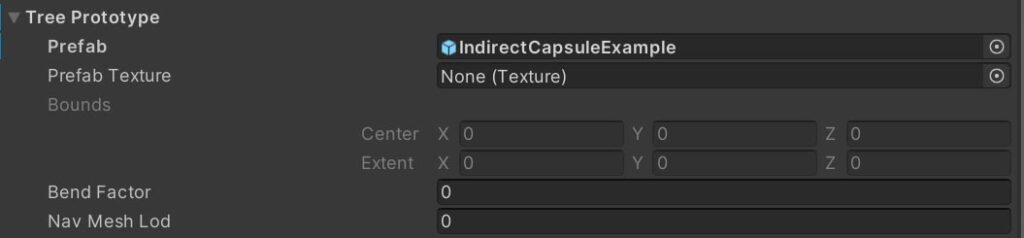
This Prefab field is the most important piece of the puzzle. If you spawn Prefabs where they show up in the Hierarchy like “MyPrefab (Clone)” each of those will end up uniquely serialized, which will not consolidate into a single Draw in FR!
Make sure however you spawn your Prefab Instances, those Prototypes stay consistent! In tools like MicroVerse there are options to ensure you spawn Objects with maintained Prefab connections and not as Clones! Make sure you use those accordingly.
IndirectGameObjectProvider API
The base functionality of Indirect GameObject Providers should “just work.” However, you may need some direct control for your Project. In addition to the public functions you will find on IndirectProviderBase there are a few methods to know about.
EnableDefaultRenderers(bool enabled): This function turns the array of Child Renderer Components on/off depending on the passed in bool.
SetRenderObject(GameObject go): This lets you assign the GameObject to be rendered by this Provider. Remember, at runtime Unity no longer “knows” about Prefabs, they are an edit time concept. If at runtime you are constructing an IndirectGameObjectProvider, you may wish to pass in a reference to the rendered GameObject so it collates into the IndirectDrawManager with existing instances. In most expected use cases, this should be unnecessary.